Phones
Google Nexus One Phone
 Google has released the Nexus One 3G phone last Wednesday, March 16th, and is available for use on the Rogers Wireless network in Canada. It is an unlocked phone which doesn’t come with any SIM card or wireless plan, so you can basically use this anywhere in the world that operates the 3G/UMTS bands (850/1900/2100 MHz) and GSM radio frequencies (850/900/1800/1900 MHz).
It’s a 3.7 inch (diagonal) touchscreen phone with a 5 megapixel camera with geotagging capability. Operating system is Android Mobile Technology Platform 2.1 (Eclair). It has WiFi and Bluetooth capability, AGPS receiver, Digital compass. It has 512 MB RAM, 512 MB Flash, and up to 32 GB Micro SD Card capacity. Talk time is up to 7 hours on 3G, 10 hours on 2G, internet use up to 5 hours on 3G, 6.5 hours on WiFi.
The current price? $529.00.
When you order the phone, it gives you an option to have a personalized engraving. Engraved phones cannot be returned for a refund, though, so just be sure the spelling is right and that you really want to keep this phone before buying.
Currently, if I decided to buy a new phone right now, I’d still choose the BlackBerry Bold 9700 over this one, though. But that’s another story for another day.
Click HERE to check out the Google phone.
Thumbs Down for Pink LG Neon TE365
Whenever I see a pink gadget, like a cellphone for instance, I usually am intrigued by it and would so love to own it and play with it.
Unfortunately, there’s this one pink phone that I do not like at all. It is cute, yes, but unfortunately, this phone is of very poor quality. 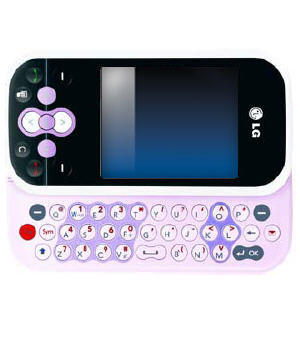 This phone is the LG Neon TE365 phone. It comes in other colours, too. I just wanted to specifically mention this phone because it comes in pink, which is what I am easily attracted to.
I have talked with a lot of people who own this phone and the most common problem with it is that the phone keeps freezing a lot. It could be you’re making a call, typing a text message, browsing the internet, or even not doing anything at all and the phone would just freeze on you. Some people would say that they just put the phone in their pocket and then when they took it out, toink, it’s frozen.
Another problem is that this phone would just randomly turn off on its own. Same situation, whether you’re doing something or not doing anything at all.
When these happen, the solution would be is to bring the phone in for repair back to the manufacturer. But actually, even if the phone is “repaired” already, it still tends to have the same problems.
Third common problem? The keyboard gets stuck or doesn’t slide properly.
I’m wondering why they still even sell these phones. By the way, other LG phone models may tend to have the same set of problems, too, so be cautious in your decision to purchase any LG phone.
I’m sorry, LG, you know that’s the reality.
iPhone Mail Settings
If you have an iPhone, you can easily add your email account if you’re using one of the default emails under the Mail, Contacts, Calendars setting, namely GMail, Yahoo Mail, and AOL. And I guess MobileMe, though I wouldn’t say it’s a common mail account used.
For Canadians, a lot of people have an email account from their Internet Service Provider, like Rogers, Bell or Telus for example among others.
 It should be pretty straightforward to setup your email actually since you can just check the settings on your computer if you’re using a mail client such as Microsoft Outlook for example. If the iPhone is looking for the incoming mail server, just check it on your mail client’s settings. If the iPhone is looking for the outgoing mail server, check it in your settings again. But I guess some people are just not very technically savvy that they have no idea what and where to find that, and I understand that.
Now, what would the world do without technical support people, right? LOL.
Anyway, here’s a compilation of the required mail settings of the most common email providers in Canada.
Settings > Mail, Contacts, Calendars > Add Account > Other > Add Mail Account
Make sure you add in your Name, Address (Email address, not home address!), and Password. Description is optional. Select Save.
Aliant Mail settings
Incoming (POP) Server: pop.bellaliant.net [port 110]
Username: Full email address
Outgoing (SMTP) Server: smtp.bellaliant.net [port 25]
Username: Full email address
Access Cable Mail settings
Incoming (POP) Server: pop.accesscable.net [port 110]
Username: Full email address
Outgoing (SMTP) Server: smtp.accesscable.net [port 25]
Username: Full email address
Bell Sympatico Mail settings
Incoming (POP) Server: pophm.sympatico.ca [port 995]
Username: Full email address
Outgoing (SMTP) Server: smtphm.sympatico.ca [port 25 or 587]
Username: Full email address
Cogeco Mail settings
Incoming (POP) Server: pop.cogeco.ca
Username: Full email address
Outgoing (SMTP) Server: smtp.cogeco.ca
Username: Full email address
EastLink Mail settings (NS, PEI, NB)
Incoming (POP) Server: pop.eastlink.ca [port 110]
Username: Full email address
Outgoing (SMTP) Server: smtp.eastlink.ca [port 25]
Username: Full email address
Hotmail/Live Mail settings
Incoming (POP) Server: pop3.live.com [port 995]
Username: username@hotmail.com / @live.com / @live.ca
Outgoing (SMTP) Server: smtp.live.com [port 25]
Username: username@hotmail.com / @live.com / @live.ca
MTS Mail Settings (MB) Click here for MTS Website iPhone screenshots.
Incoming (POP) Server: pop3.live.com
Username: username@mymts.net
Outgoing (SMTP) Server: smtp.live.com
Username: username@mymts.net
Primus Mail Settings
Incoming (POP) Server: pop.primus.ca [port 110]
Username: username@primus.ca
Outgoing (SMTP) Server: smtp.primus.ca [port 465]
Username: username@primus.ca
Rogers Mail Settings
Incoming (POP) Server: pop.broadband.rogers.com [port 110]
Username: username@rogers.com
Outgoing (SMTP) Server: smtp.broadband.rogers.com [port 25 or 587]
Username: username@rogers.com
Shaw Mail settings
Incoming (POP) Server: pop.shaw.ca [port 110]
Username: Username (first part of email address without “@shaw.ca”)
Outgoing (SMTP) Server: Dependent on your location. Refer to http://www.shaw.ca/en-ca/CustomerCare/InternetSupport/Residential/RoutersandShawServerNames.htm
Telus Mail settings
Incoming (POP) Server: pop.telus.net / (IMAP) Server: imap.telus.net [port 143]
Username: Full email address
Outgoing (SMTP) Server: smtp.telus.net [port 25]
Username: Full email address
Videotron Mail settings
Incoming (POP) Server: pop.videotron.ca [port 110]
Username: Full email address
Outgoing (SMTP) Server: relais.videotron.ca [port 25]
Username: Full email address
Obviously, when you have a username, you should also put your password in the Password section. Just leave the other settings I haven’t mentioned here as default.
Take note that the Outgoing (SMTP) Server will only work over a WiFi connection. If you’re sending out email through your wireless mobile phone network provider, you would need to add their SMTP server, e.g. Rogers Wireless uses smtp.rogerswirelessdata.com [port 25]. Check with your network provider for this setting.
Remember, if you’re having trouble sending email, try turning off your WiFi, then it should usually work fine, as long as you have your network provider’s SMTP server configured.
Additionally, if you have a work email, that usually means you might have to add your email by going into Settings > Mail, Contacts, Calendars > Add Account > Microsoft Exchange. Take note, only one Exchange ActiveSync account can be configured on the iPhone. Contact your company’s Mail Administrator for this.
Photo Credit: Vandelizer
iPhone 3GS vs iPhone 3G
As far as I can recall, a couple of people have asked me what’s the difference between the iPhone 3G and iPhone 3GS. My answer? The iPhone 3GS is faster (S is for speed!). And it also has the Compass feature. Okay, not such a good answer, eh? I should’ve expected this question to come up at any time and should’ve taken note of the things that make the 3GS better than the 3G.
According to Apple, iPhone 3GS is “the fastest, most powerful iPhone yet. Now with built-in video camera, Voice Control, longer battery life, and more.”
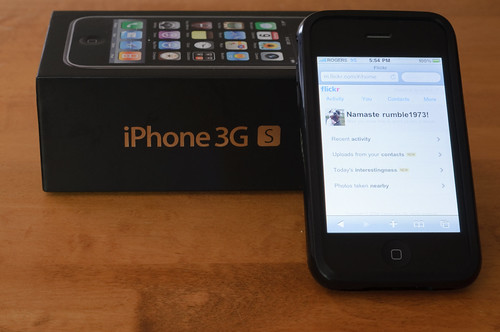 The 3GS camera is 3 megapixels, has autofocus, and video recording. On the other hand, the 3G has only 2 megapixels. Other new features of the 3GS include improved performance (faster!), voice control, and compass. Five other features that come with the latest version software (3.0 and later) include Cut, Copy & Paste, Messages, Spotlight Search, Landscape Keyboard, and Voice Memos.
Battery life for the 3GS is also better with the following differences: Talk time is up to 12 hours on 2G (compared to 10 hours on the 3G), WiFi internet use up to 9 hours (compared to 6 hours on 3G), audio playback is up to 30 hours (compared to 24 hours on 3G), and video playback up to 10 hours (compared to 7 hours on 3G).
Those are basically the differences between the two. Oh and just a note, by looking at the two, there’s no physical difference really. To distinguish between the two, you can take a look at the back. The iPhone label at the back for the 3G is in black, while the 3GS is in chrome just like the Apple logo.
To learn more about how to do everything on the iPhone, go HERE.
Photo Credit: CGehlen
Pomegranate Phone
Phones these days include features such as email, internet browsing, camera, video, music player, and GPS among others. Have you ever thought of the possibility of the phone having other features such as the following:
- Projector
- Global Voice Translator
- Coffee Brewer
- Shaver
- Harmonica
Well then, check out the amazing Pomegranate Phone! [http://pomegranatephone.com]
Too good to be true, eh? 🙂 Turns out, it’s only like a promo thing for Nova Scotia [read: non-existent] which you’ll realize when you click on the Release Date link. Very creative, I must say!
- ← Previous
- 1
- …
- 3
- 4
- 5
- Next →
 Tech-Life in Pink