Phones
Samsung Infuse 4G VIP Tour Party (Canada)
I got an invite to the Samsung Infuse 4G VIP Tour Party held at Brant House on 522 King Street West, Toronto last July 19, 2011. It was one fun night – music, food, games, prizes – and of course we got to test out the various Samsung products including the Galaxy Tab, and phones (Galaxy SII, Infuse, etc).

The Samsung Infuse 4G is an Android smartphone which features a 8–16 GB internal Flash memory, a 4.5 inch 480×800 pixel Super AMOLED Plus capacitive touchscreen display, a 8-megapixel camera and a 1.3 megapixel front-facing camera. In Canada, it comes shipped with Android 2.3.3 Gingerbread and capable of 720p video recording and was released in July 2011 by Rogers Wireless.
Unboxing the Nokia N8
WOM World/Nokia contacted me again if I wanted to trial a Nokia N8. I gladly accepted and I got the Nokia N8 by courier two days ago. Here are photos of the unboxing. Review on the product in another post coming soon.
Nokia N8 Launch Party (Canada)
Two nights ago on November 10th, 2010, I attended the Nokia N8 Launch Party in Toronto, Canada where I was invited by Chris from WOM World/Nokia. It was held at Bang & Olufsen at 175 Avenue Road. It was a cool place and a cool party. Drinks and hors d’oeuvres were served, hip music was played. On one side was a section where anyone can play games using the Nokia N8s which were plugged into two big screen TVs.
There was a section where someone was showing the game/apps features of the phone, and another section where someone was explaining the technical specs of the N8. I got to try out playing two games on the N8 — Avatar and Angry Birds. The screen was nice and very responsive. I noticed though that when you have 2-3 apps open while playing, it slows the game down. So if you ever want to play games on it, better to close all the other apps that you have running.
-More after the jump-


When I headed over to the technical section, the guy who was there was still talking to someone. So I stood nearby kind of waiting. And then Glenn, the nationwide sales manager of Nokia Canada who was standing nearby too, asked if he could answer any questions I had although he probably wouldn’t be more specific as the N8 technical guy there. He was really nice as he answered my inquiries about the phone. I mentioned that it was really light and I was curious what kind of material was used to make it; he said it was anodized aluminum. I probably wouldn’t have needed to ask that question if I did some homework on the product before going to the launch party. We talked about how good its touchscreen was. I mentioned that based on my experience with other Nokia models with touchscreens, this one was really good while the older ones were not so good. Also the N8 has 16GB internal memory but is expandable up to 32GB with a MicroSD card.
Welcoming remarks were made after an hour I was there by another important person from Nokia Canada (sorry can’t remember who it was) and also the host that was the owner of Bang & Olufsen. It was mentioned that the N8 is sold only on Rogers Wireless for $79.99 on select 3-year plans. Also on a side note, interesting that the host mentioned that Bang & Olufsen and Nokia had something in common, that is they are both Scandinavian. And then they showed a video on the big screen which was shot with the Nokia N8. It was sharp and had good picture quality.
After the welcome remarks, I hung out for a bit more, had some more hors d’oeuvres and played again with the N8 in the games section, then I had to go home because I had work early the next day. Anyway, eventhough I’ve had a short experience with the N8, I was already really impressed by it. I can’t wait to test it out for a couple of weeks (coming soon!).
Oh yeah, I got a free Nokia Bluetooth Headset BH-804 in a small giveaway Ovi bag. That was pretty cool.
P.S. The photos I took are kinda crappy because I didn’t have my camera with me so I used my BlackBerry Curve.

iPhone 4 / iOS4 New Features
This post is quite a bit late already as the iPhone 4 has been released a few months ago. However, I know the following are really useful bits of information, so read on! (Reference: iPhone Support documentation)
Antenna (low signal / dropped calls)
The iPhone 4 has a new Antenna system. If you are having reception issues, Apple recommends getting a bumper case that will help safeguard the antenna from touch. To avoid poor reception issues if you don’t want to use a bumper case, make sure you hold the device by not touching the area where the black strips are at the bottom of the unit. It is also recommended to update it to iOS 4.01 or above which corrects an abnormality in the signal strength meter.
Cellular Data
iOS4 includes a new feature called Cellular Data – it allows you to turn off DATA CONNECTIVITY while still being able make and receive voice calls and using SMS. This is good if you are one of those users who wish to turn off data to conserve battery life or to safeguard against accidental roaming charges. When this option is OFF, you will not be able to use MMS, Tethering, use Visual Voicemail (the phone will still allow you to call into your voicemail box from the voicemail screen), and any application that requires data or location services will not function.
FaceTime
FaceTime is Apple’s new video calling feature, which is only available if you and the person you’re calling has an iPhone 4 as it requires the front facing camera. At the moment it only works through WiFi – 3G service is expected to be coming later this year (with Rogers Wireless users). If you are experiencing issues placing a call after porting your number, follow the steps HERE.
Should you have issues placing FaceTime calls and are behind a firewall, make sure you enable port forwarding for the following ports 53, 80, 443, 4080, 5223, and 16393-16472 (UDP). Refer to your router manufacturer for assistance or to your local IT Group.
Picture Restrictions
You can only copy five images at a time into an email. You can also now share up to nine images via MMS and five via email.
Voicemail Info (VMRN – Voicemail Retrieval Number)
| Check Current VMRN | *#5005*86# call | |
| Set Visual VMRN | *5005*86*+16478029327# call | (This is for Rogers iPhone users only. You may need to use a different VMRN. Contact your service provider.) |
Text Message
| Set Service Centre # | *5005*7672*+17057969300# call | (This is for Rogers iPhone users only. Contact your service provider for applicable SMSC#.) |
VPN Access (requires the Public IP Service)
| APN: vpn.com | Username: wapuser1 | Password: wap | (This applies to Rogers iPhone users only.) |
Other Useful Links and Support Tools
| iTunes Account and Purchasing Issues | 1-800-MYAPPLE |
| Apple Support and Tutorials | http://www.apple.com/support/iphone/ |
| Apple Expert (1×1 Phone Call) | http://www.apple.com/support/expert/ |
| MobileME Support | http://www.apple.com/support/mobileme/ |
| iPhone Troubleshooting Assistant | http://www.apple.com/support/iphone/troubleshooting/ |
| General iPhone Troubleshooting | http://support.apple.com/kb/TS2802 |
| Multitasking (iOS4) | http://support.apple.com/kb/HT4211 |
| MMS Issues | http://support.apple.com/kb/TS2755 |
| iOS4 User Guide | http://manuals.info.apple.com/en_US/iPhone_iOS4_User_Guide.pdf |
| Purchasing and Creating Ring Tones | http://support.apple.com/kb/HT1398 |
| Warranty Validation | https://selfsolve.apple.com/agreementWarrantyDynamic.do?newid=y |
What to Do in Case of iPhone Mail Glitch
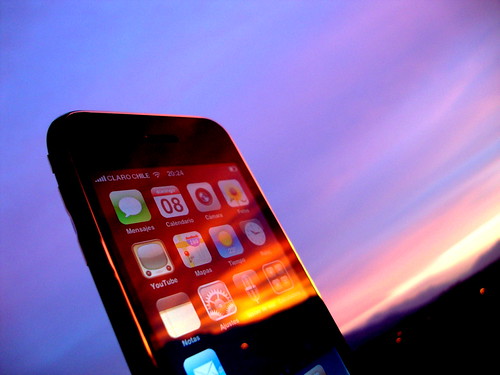 The Apple iPhone is a really useful gadget for checking email on the go. I find that as with all gadgets, it tends to have some glitches, too. One of them involves the Mail application on the iPhone.
If you are an iPhone owner and if you ever experience that you touch the Mail app to open it but it just won’t seem to open, fear not, there is a solution to to this. Be aware though that this solution cannot be guaranteed to work for all iPhones that experience this problem. And if that’s the case, hopefully you’re still in warranty to have the phone replaced.
Here are some problem scenarios you may encounter with the iPhone:
- You touch the Mail app, it opens for like half a second, then exits and goes back to the Home Screen on its own.
- You open the Mail app, then delete an email on your Inbox. You press the Home Screen button to exit. You open up the Mail app again; that email you deleted is back like you never deleted it at all.
What’s probably happening is one of the following things:
- You have an email with a very large attachment.
- You may have a corrupt email on the mail server.
- You have a bounced-back email (undeliverable mailer daemon email).
So here’s what you can do to try to fix this.
On your computer:
Delete the email with the large attachment from the mail server, or save it somewhere else.
Delete the spam email.
Delete the undeliverable mailer daemon email.
Make sure they’re also deleted from the Trash/Deleted Items folder.
On your iPhone:
Go to Settings > Mail, Contacts, Calendars. Select your mail account. Scroll to the bottom and select Delete Account.
Go back to Settings > General > Reset > Reset All Settings. This will restart your iPhone.
When the iPhone is loaded up again, re-add mail account by going to Settings > Mail, Contacts, Calendars > Add Account.
Once mail account is saved, press Home Screen button and go to Mail to check if it’s working.
If you’re still encountering the same problem, you will have to Restore as new iPhone through iTunes. This will delete all your data on the phone so make sure all your data is backed up and synced to iTunes on your computer. Also, update the iPhone firmware to the latest if you don’t have it yet.
Once Restore is done, re-add mail account. If the problem still persists, iPhone is defective and will need to be replaced.
Photo Credit: Gonzalo Baeza Hernández
 Tech-Life in Pink

