Tech
Linksys NAS 200 Tech Support – Part 2
[Part 1 of this topic HERE.]
I took out and checked the hard disk drives and it turns out I actually had two 1000 GB (1 TB) hard disk drives put in the Linksys Network Storage System NAS 200. So I actually was supposed to have a total of 2 TB capacity (or technically, 2 x 931 GB = 1862 GB). Got even worse since only 858 GB was showing, eh?
 I tried the Separate Disks drive configuration and it showed the correct capacity. The problem was when I had it configured as JBOD/LVM. I tried installing two, then just one. But still the same.
When I contacted chat support on Day 2, the agent tried to suggest solutions and walked me through them, but they didn’t work. I wasted about 40 minutes with him for this. Then I had to cut our conversation short since I had to do something else at that time.
In the end, that afternoon I found out the solution on my own. I simply needed to flash the NAS 200 with the latest firmware which is Version 3.4R75. In the release notes, this is specifically what I needed:
11. Fix the issue that the drive size can not be recognized correctly when hard drive size over 500GB under JBOD/LVM configuration.
The tech support agents should have asked me the question what firmware version did the NAS 200 have but they didn’t! Problem would have been solved sooner if they had. Note to self: Check for latest firmware version of equipment always!
If you ever encounter a problem with equipment not showing proper capacity or anything similar whatsoever, check for the latest firmware always on the product website. Or if they don’t have updated firmware, third-party sites might have (use Google to search for these).
Linksys NAS 200 Tech Support: Unsatisfactory
[Update/Part 2 of this topic HERE.]
“The Linksys by Cisco brand is known and respected worldwide through products designed to fit each country’s networking requirements…”
“Why Choose Linksys by Cisco…
…Technical Support.
Our call centers are recognized worldwide for quick response and the ability to solve problems…”
I found these statements on Linksys by Cisco’s About Us page. With this, you would surely be confident of the technical support they would give you, right? NOT! That is not the impression I had today when I contacted their technical support for the first time. Let me share what happened to me.
I was working with the Linksys Network Storage System NAS 200. I configured and set it up on the local network. It has two SATA hard drive bays and also two USB ports where external hard drives can be attached. In the drive configuration for the NAS 200, four choices are given on how you want to set it up, depending if you want (A) maximum storage, (B) maximum data security, or (C) maximum speed: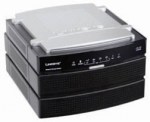
- 2 separate disks — A
- 2 disks configured as one large disk (JBOD/LVM) — A
- Mirroring (RAID 1) — B
- Striping (RAID 0) — C
I put in two 500 GB SATA hard drives, a total of 1 TB, and configured it as JBOD (Just a Bunch of Disks). Expected total capacity should be about 931 GB. What did it show me? Only 858 GB. Where did the 73 GB go? No idea. So I called tech support, explained the situation, and asked why this is so. A lady agent received my phone call around 4:35 PM EDT.
- Conversation ~ 2 minutes
- On hold ~ 4 minutes
- Agent asked more questions and gave me a vague answer then told me I should probably speak to her supervisor ~ 2 minutes
- On hold ~ 10 minutes
- Agent told me supervisor should be with me in one minute and asked that he can either call me back or if I will wait. I said I will wait (after all, I’ve been waiting already and wanted an answer right away, right?). I wanted to make sure so I asked her “one minute?”. She said, “Yes, one minute.” So I confirmed again that I will wait. ~ 1 minute
- On hold ~ 3 minutes ( ! )
- Agent apologized that the supervisor wasn’t available because he was still on the phone with someone else. They will have to call me back in 20 minutes. Exasperated, I just agreed.
 Guess what? She nor the supervisor didn’t call me back. They just wasted about 22 minutes of my time!
I tried to search for answers online but it was getting late so I didn’t find much. I tried the e-mail support instead but I got an automated response that they no longer have e-mail support and recommended an option for live chat support instead. Good thing is I was able to chat to an agent and was more enlightened by his responses. He recommended that I connect the hard drives directly to the computer to check its exact capacity. I figured if the total capacity would still be 858 GB when connected directly, then the problem has to do with the hard drives. If it indeed shows ~931 GB, then the problem would be their storage system.
Tomorrow I’ll check the capacity. I’ll write an update about what happens.
P.S. I’m hoping their phone support was only poor for today and not regularly.
[Update/Part 2 of this topic HERE.]
Photo Credit: Evil Erin
Della: Dell for Women
 Della is Dell’s new micro-site for women. Notebooks and netbooks are being featured and geared towards women. A lot of design choices for the laptops are being featured. As I looked through them, I was expecting to see something in the pink motif, and of course there was.
There is a tech page included featuring Seven Unexpected Ways a Netbook Can Change Your Life. Kind of interesting, but I wouldn’t exactly say they’re “tech tips”. [UPDATE 05/14/09: Article was modified to ‘Five Ways to Use a Netbook’ after many ladies gave not-so-good feedback about the content they had.]
Anyway, see the site for yourself: click HERE.
Update 10/22/10: The Della micro-site no longer exists since quite awhile ago. I just haven’t put an update on this post.
Omni Antenna vs. Directional Antenna
An Omni-directional antenna is usually described as a low-gain, dipole-like antenna, while Directional antenna is one with a predominant beam in one direction and significantly more gain. Using another antenna, whether indoor or outdoor, is one of the options you have for extending your wireless (WiFi) network.
An antenna gives the wireless system three fundamental properties: gain, direction and polarization. Gain is a measure of increase in power. Gain is the amount of increase in energy that an antenna adds to a radio frequency (RF) signal. Direction is the shape of the transmission pattern. As the gain of a directional antenna increases, the angle of radiation usually decreases. This provides a greater coverage distance, but with a reduced coverage angle. The coverage area or radiation pattern is measured in degrees. These angles are measured in degrees and are called beamwidths. [Cisco]
In deciding which of these two antennas you should be using, you must consider the range that you want to achieve as well as the obstructions/interferences that are present. Like for example, would you want to focus the signal to one direction only, that is towards the other building, or to two buildings on opposite sides of the central one? If to only one building, then maybe you could consider a directional antenna, otherwise, an omni might be more practical. Also, consider the walls that might be obstructing the area you wish to reach with your wireless signal. If there are too many obstructions, you might also consider putting up wired connections in addition to the wireless part.
Do look and compare the gain, the direction, and polarization of various antennas if you do wish to purchase one and evaluate if it is what you wish to achieve for extending the range of your wireless network.
 Photo Credit: johnny2love
Extending the Range of a Wireless Network
Extending the wireless range of your existing network is possible through the use of a wireless repeater. It may also be that your existing router may just need a firmware upgrade which will enable other features of the hardware, such as an increase in the router’s transmission strength.
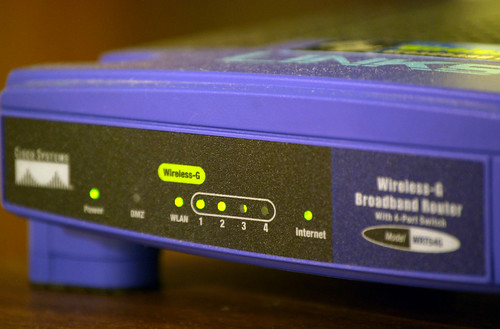 An ordinary wireless router can be used as a repeater bridge with a third-party firmware such as DD-WRT. DD-WRT is a Linux-based firmware released under the terms of the GPL for many (WiFi) IEEE 802.11a/b/g/h/n wireless routers based on a Broadcom or Atheros chip reference design. DD-WRT offers many advanced features not found in the OEM firmwares of these devices, or even the firmware available for purchase from Sveasoft. [dd-wrt.com/wiki]
To know if a specific router can be used as a repeater/bridge, a list of supported devices is available on the DD-WRT website.
However, using a repeater bridge for your wireless network has the downside for a client of not having the optimum speed in accessing the internet (if connected via the repeater). A repeater bridge will sacrifice half of the bandwidth available from the primary router for clients wirelessly connected. This is the result of the repeater taking turns talking to two partner devices, and having to relay traffic between them.
 Other things to keep in mind to improve your wireless network are positioning your wireless router in a central location and moving it away from obstructions such as walls and metal objects. A router’s antenna can also be replaced with a better one which has a better dBi gain. You can also change the wireless channel used to minimize interferences.
Photo Credits: webhamster, tiseb
 Tech-Life in Pink