Tech
Tour of the TorIX
I had a chance to have a tour of the Toronto Internet Exchange, also known as the TorIX, at 151 Front Street West thanks to Board Director and current TorIX President Jon Nistor last Friday, January 20th, 2012. Interestingly, Jon started his involvement with the TorIX when he was working way back with Primus Canada about ten years ago, which is where I am currently working.
Now, what is the TorIX exactly?
The TorIX is an entity designed to act as a junction between multiple points of Internet presence. Here, members are able to directly connect with one another in order to exchange local Internet traffic. [TorIX]
It was first started within the RACO facility about twelve years ago in 1999. After a few years, it was then within Switch and Data, and currently it is within Equinix. The TorIX, using a three-switch design, is located in three areas at 151 Front – two are in the Equinix colocation and one is in the Cologix colocation. The two (of the 7 or 8) Equinix areas being used are on the 7th floor, and Cologix is in the 6th floor where the core equipment and the main TorIX switch Cisco Nexus 7000 are located.

Some TorIX members have their own colocation facility within 151 Front, others colocate in the Equinix facility within 151 Front, and others are located outside of 151 Front. The bigger Equinix room on the 7th floor has about 8 to 9 peers there. In the smaller Equinix room, you will find the PRI switch there and some other peers. Teleglobe, who acts as a carrier for some peers like from Netherlands or Italy, and another carrier Level 3 (formerly Global Crossing) also colocates in that room. Some of those that colocate in the Equinix facility do not necessarily have their actual servers in the location; it is only their transport equipment and multiplexers there, like for example Google, as they have their own data centre somewhere else. CBC and Toronto Hydro are examples of some peers that are located outside 151 Front.
Peering at the TorIX would be cheaper than having to peer directly with each of the ISPs or hosting companies. The cost involved in peering at the TorIX only includes the cost incurred with a peering member’s telco provider, and the last mile connection between the member’s facility and the switch (install + yearly fee). This could be $1,200/year for some smaller company peers, or be something like $60,000/year for peers that want more bandwidth or faster speed. This would be tons cheaper as you would have the opportunity to get connected with many peers through this Internet Exchange.
TorIX members can choose whomever they want to peer with, and configure their own equipment to establish the peering sessions. On the other hand, there are also some others that just use the routeservers if they want to get all routes without individually setting up peering with the TorIX members. This wouldn’t really be all routes, but more like 80% of the routes.
For ten years, the TorIX has been using donated equipment, but now all the equipment are purchased with support contracts – just in case anything doesn’t work as it should, or needs replacement parts. Speaking of which, thanks go out to Jon for giving me a Cisco Catalyst 3524 switch from the spare stock pile, which led me to decide to get my own equipment for my home lab to practice with. I really need to get going in pursuing my Cisco certifications.
The TorIX currently has 7 Board of Directors and 3 Operations persons who all help run the ToriX in a volunteer capacity. Volunteering with TorIX would be great, in my opinion, so I would want to help out in some way, as it would be a good learning experience as well. They have monthly meetings, take part in conferences, have projects from time to time (like the current NTP server project with CIRA), and others.


Unboxing the BlackBerry PlayBook
I received a BlackBerry PlayBook as a present in September. Around this time, I also sold the HP Slate (which I adored). Although I really liked to keep that HP Slate, I had to say goodbye to it. I have a BlackBerry Bold as my phone, so having the PlayBook was perfect for me.
The BlackBerry PlayBook is a tablet computer made by Research In Motion (RIM) which was released in April 2011 in Canada and the United States. The device runs on Blackberry OS, which is an operating system based on QNX Neutrino.
Here are pictures of the unboxing of my BlackBerry PlayBook.
Samsung Infuse 4G VIP Tour Party (Canada)
I got an invite to the Samsung Infuse 4G VIP Tour Party held at Brant House on 522 King Street West, Toronto last July 19, 2011. It was one fun night – music, food, games, prizes – and of course we got to test out the various Samsung products including the Galaxy Tab, and phones (Galaxy SII, Infuse, etc).

The Samsung Infuse 4G is an Android smartphone which features a 8–16 GB internal Flash memory, a 4.5 inch 480×800 pixel Super AMOLED Plus capacitive touchscreen display, a 8-megapixel camera and a 1.3 megapixel front-facing camera. In Canada, it comes shipped with Android 2.3.3 Gingerbread and capable of 720p video recording and was released in July 2011 by Rogers Wireless.
Peering Database
 Something new I learned today is that I found that there is a Peering Database which contains details of different peers who are setup in various Internet Exchange points (IX or IXP) around the globe.
So basically, it contains information on what networks are peering, where they are peering, and if they are likely to peer with you. The site is PeeringDB.com .
An Internet Exchange is where Internet Service Providers (ISPs) exchange internet traffic between their autonomous networks. The primary purpose of this is to have direct interconnection of networks via the exchange, rather than through one or more third party networks, thereby reducing cost, latency, and bandwidth.
Some of the IXs I’m more familiar with (through my workplace) are the TORIX (Toronto Internet Exchange), NYIIX (New York International Internet Exchange), SIX (Seattle Internet Exchange), and AMS-IX (Amsterdam Internet Exchange). Some peers have different policies according to their needs. Some have an open policy which means that they can establish BGP peering sessions with those networks who request to peer with them, while others have a selective policy which is attributed by varied reasons.
The data that you can find from the Peering Database are the company information, peering policy information, contact information, public peering exchange points, and private peering facilities. I have to mention that a specific company may be available at several IXs. It depends on the need of the company that wishes to peer, whether they want to establish sessions with all, some, or just one of those IXs where they have a mutual presence.
Photo Credit: Fabienne Serriere
HP Slate – It’s worth it.
The HP Slate (or HP Slate 500) is a Windows 7 slate PC with multi-touch capabilities. I got my own last April 2011 and I love it. As with all other devices, it has some pros as well as cons. Let me share my thoughts on this device based from my experience with it so far.
Pros
It is very portable; smaller than a laptop or netbook. It is light enough to be used like an e-reader (think Kobo or Kindle). It runs on a Windows environment, which means most of the applications/programs you are currently using at home or at your work computer can be installed and used on this. It has a multi-touch interface which means you can do stuff right there on the screen without needing a stylus pen (although it comes with one). 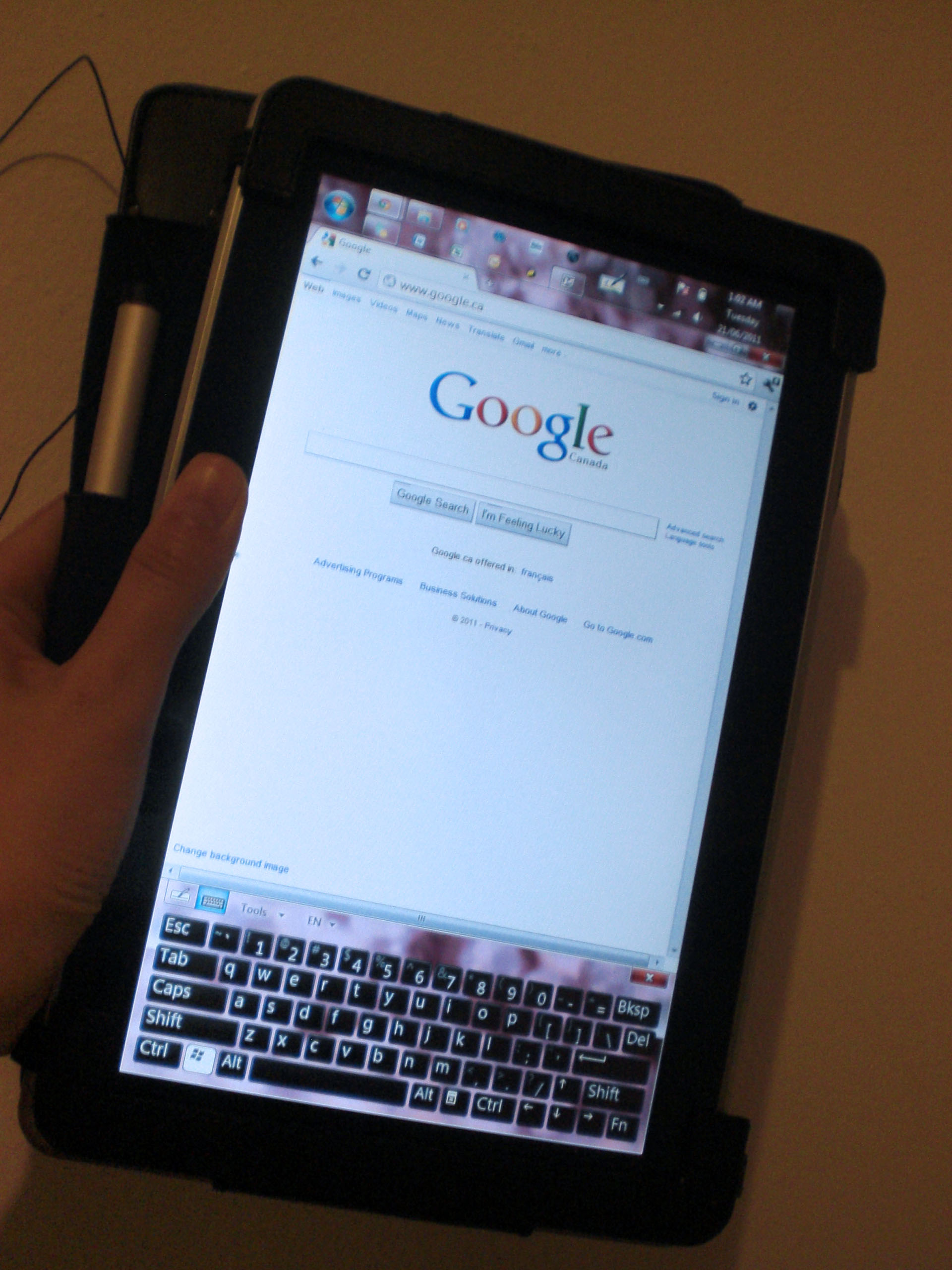
Cons
It is not as light as the Apple iPad or BlackBerry Playbook, or other tablets for that matter, which could be a disadvantage for some because some people want a tablet/slate PC to be extremely light. It doesn’t really have a specialized interface either for touch, unlike the iPad or Playbook which have some apps which makes tasks or viewing of data easier on them. The screen also isn’t as responsive to touch as I’d like it to be, especially since I tend to have sweaty fingers at times. Also, it only has a 64GB internal hard drive and doesn’t have cellular network capability (3G).
Verdict
Of course, despite of its cons, I still think the HP Slate is a great product. It is more targeted for professionals who need to work on the go from time to time, if not all the time. It is useful for logging into work through VPN using a Cisco client. It can run simulators which I can use for practicing for my CCNA (though I have yet to install it). I can use the standard Microsoft Office programs on it (or Open Office if you prefer). I can also install Adobe Photoshop (or whatever else) on it if I prefer, but that one can be memory extensive, so never mind. With regards to the small internal hard drive capacity, you can obviously connect an external hard drive to it for additional capacity through the USB port. Also, with the availability of internet sticks, you can use the Slate on the 3G network by plugging the stick in the USB port; or tether to it if you have a BlackBerry (as I do) or iPhone.
So despite quite a number of cons, there are still a good number of pros for this device, and that is why I chose to have it.
The HP Slate 500 can be purchased directly on the HP site ($799), or eBay if you want it cheaper.
Also, coming soon from HP: the TouchPad which is more like the iPad or Playbook, and more targeted to regular consumers.
 Tech-Life in Pink