Gadgets
Translate Text in Real Time with the Google Translate App
There’s a new app from Google Inc. that I recently downloaded called Google Translate. It’s a pretty cool app that translates text in real time.
Here’s the description from the Google Play Store:
• Translate between 90 languages
• Converse naturally and let Google translate
• Translate with your voice, camera, keyboard or handwriting
• Translate offline while traveling. No internet connection needed.
• Save your translations and access from any deviceTranslations between the following languages are supported:
Afrikaans, Albanian, Arabic, Armenian, Azerbaijani, Basque, Belarusian, Bengali, Bosnian, Bulgarian, Catalan, Cebuano, Chichewa, Chinese (Simplified), Chinese (Traditional), Croatian, Czech, Danish, Dutch, English, Esperanto, Estonian, Filipino, Finnish, French, Galician, Georgian, German, Greek, Gujarati, Haitian Creole, Hausa, Hebrew, Hindi, Hmong, Hungarian, Icelandic, Igbo, Indonesian, Irish, Italian, Japanese, Javanese, Kannada, Kazakh, Khmer, Korean, Lao, Latin, Latvian, Lithuanian, Macedonian, Malagasy, Malay, Malayalam, Maltese, Maori, Marathi, Mongolian, Myanmar (Burmese), Nepali, Norwegian, Persian, Polish, Portuguese, Punjabi, Romanian, Russian, Serbian, Sesotho, Sinhala, Slovak, Slovenian, Somali, Spanish, Sundanese, Swahili, Swedish, Tajik, Tamil, Telugu, Thai, Turkish, Ukrainian, Urdu, Uzbek, Vietnamese, Welsh, Yiddish, Yoruba, Zulu
One of the cool features is that using your camera, you can point it at the text that you want to translate and it will instantly translate the text even without internet/data connection.
Here’s a picture of a magazine that I randomly grabbed near me, and the translation from English to French which you can see on my phone using the Google Translate app. That one is actually not in real time as I had to “pause” it, then take a picture. For the record, my phone would not let me take a screenshot while it was translating in real time for some reason.

suretap wallet surely works for me!
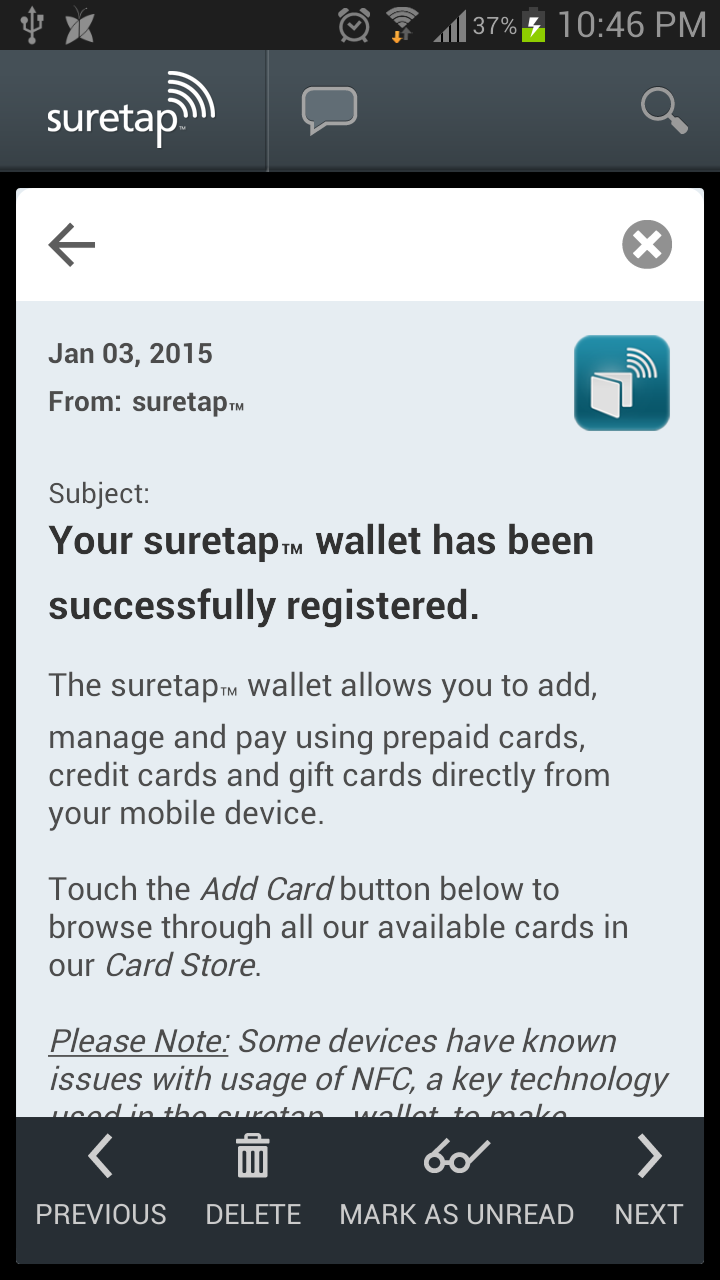 About a week ago or so, I downloaded this new app called suretap wallet. So, what is it, you ask? It’s an app from Rogers that enables users to store payment cards and complete everyday point-of-sale (POS) transactions using their mobile device. This, however, can only be used on POS terminals which support contactless payments.
Currently, you can only add the Rogers Prepaid MasterCard as well as some gift cards to it. There was a recent promotion (which expired on January 6, 2015) that when you register and add the Rogers Prepaid MasterCard to the suretap wallet, you will receive $100 in free money. Yep, you read that right – one hundred dollars! If you were not able to take advantage of this promotion, let’s hope there’s another one for you soon.
The suretap wallet application is compatible with only certain smartphones. Current list includes the following:
- Samsung GALAXY Alpha™
- Samsung GALAXY Note 4™
- Samsung GALAXY Note 3™
- Samsung GALAXY Note II™
- Samsung GALAXY S4™
- Samsung GALAXY S III™
- Samsung GALAXY S5™
- HTC One™
- HTC One (M8)
- LG G3
- LG G Flex
- LG G2
- LG Optimus G
- BlackBerry® Z10
- Sony Xperia® Z3
- BlackBerry® Z3
- Samsung Core LTE
- BlackBerry® Z30
- BlackBerry® Q10
 Basically, any device with NFC (near field communications) capability should work. Also, you would need an active suretap LTE SIM card.
The first transaction that I had using the suretap wallet with the free $100 in my Rogers Prepaid MasterCard was for my purchase at a health food store. The cashier was amazed, exclaiming, “Oh, new technology!”
For more information on suretap, check out rogers.com/suretap.
Onda V919: The Less Expensive iPad Air Clone with Dual-Boot and Cellular Connectivity
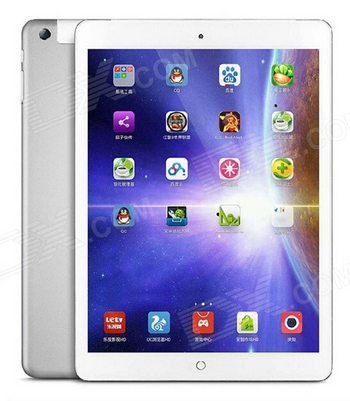 Onda V919 is a 9.7 inch tablet from China which looks like the Apple iPad Air, but without the expensive price. Even with the cheaper price, it is actually a well-made tablet with good specifications, according to Phone Arena.
The Onda V919 3G Air only costs C$196.85 (from DX.com), offers 64GB of internal storage, and features 3G cellular data connectivity. Also, it has the capability to dual-boot Android 4.4 KitKat (not Lollipop unfortunately) and Windows 8.1. To switch between the two operating systems, you would only need to press a button.
For comparison, a 16GB iPad Air with WiFi only (no cellular connectivity) is about C$439, and with cellular connectivity is C$579. That’s a pretty big price difference!
Would you consider buying this tablet?
Find Out How Your Smartphone’s Idle Time Can Help in the Search for the Ebola Cure
 The Scripps Research Institute (TSRI) in partnership with IBM’s SoftLayer cloud-enabled World Community Grid makes use of a virtual supercomputer to help screen millions of chemical compounds to identify new drug leads for treating Ebola. This virtual supercomputer is collectively powered by volunteers’ computers, tablets, and smartphones where the CPU (central processing unit) is being utilized when the devices are idle through the use of a safe and free app installed on these devices.
Currently, anyone with a computer, Android tablet/smartphone, or an Amazon Kindle Fire tablet, can volunteer their device to help in the cause to find a cure for Ebola. On a computer, first, you would need to go to www.worldcommunitygrid.org and register there. When you register, it will provide you the links to download and install the software to your computer.
If you will be using your Android device or Kindle Fire tablet to help this cause (sorry, no iPhones at this time), you can also register on the same site then download the app from the Google Play Store or Amazon App Store, or alternatively, you can download the app first and register from there.
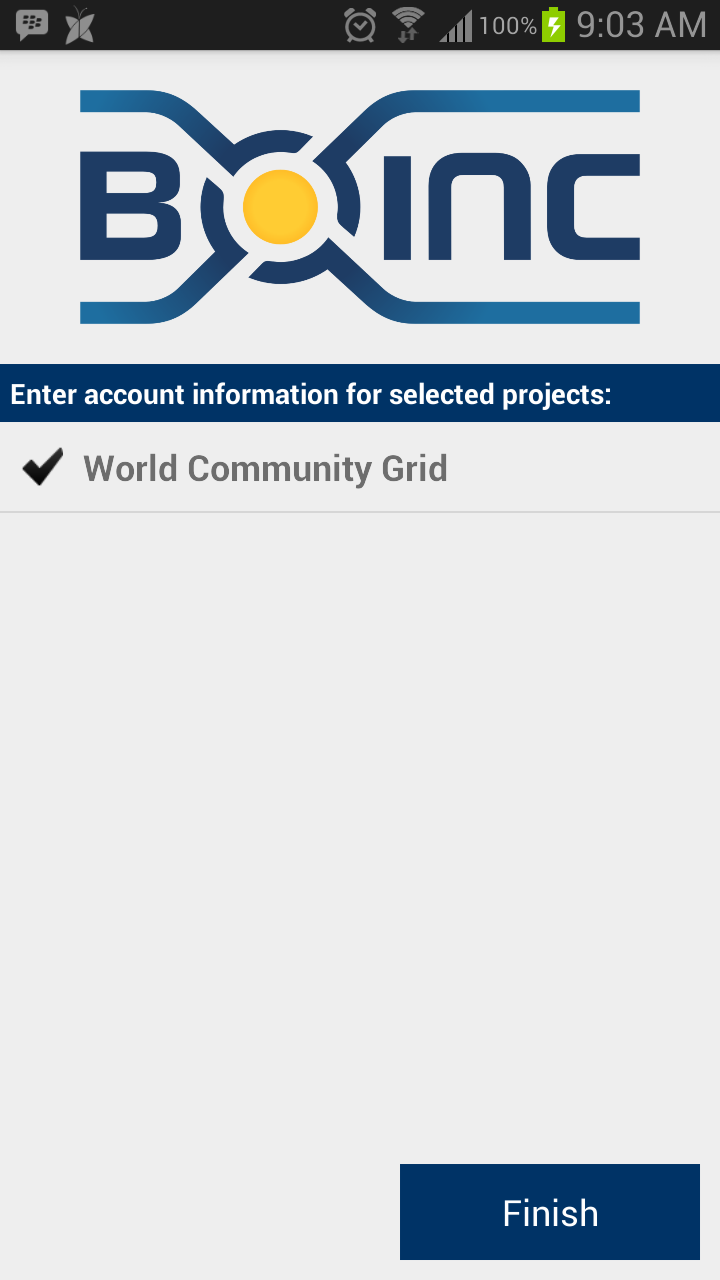
On the app store, search for BOINC then download and install it. When BOINC starts, it will ask you to select the research projects that you want to support. Select World Community Grid, sign in (or register) and make sure you select the Outsmart Ebola Together project.
There are also two Android apps that are re-packaged versions of BOINC:
- HTC Power to Give
- Samsung Power Sleep (lets you participate in only one project, SIMAP; provides a simple alarm-clock interface).
Take note that BOINC will not significantly reduce your battery life or your charging time as it only computes when your device is plugged into a power source (AC or USB) and your battery is charged 90% or more by default. Click here for more BOINC FAQ.
Without your help, the research could take hundreds of years, instead of weeks or months. So, what are you waiting for? Let’s all help find a cure for Ebola now and help spread the word!
Video: Help find a cure for Ebola with your computer or smartphone
Mobile deposit makes depositing cheques easier without going to the bank
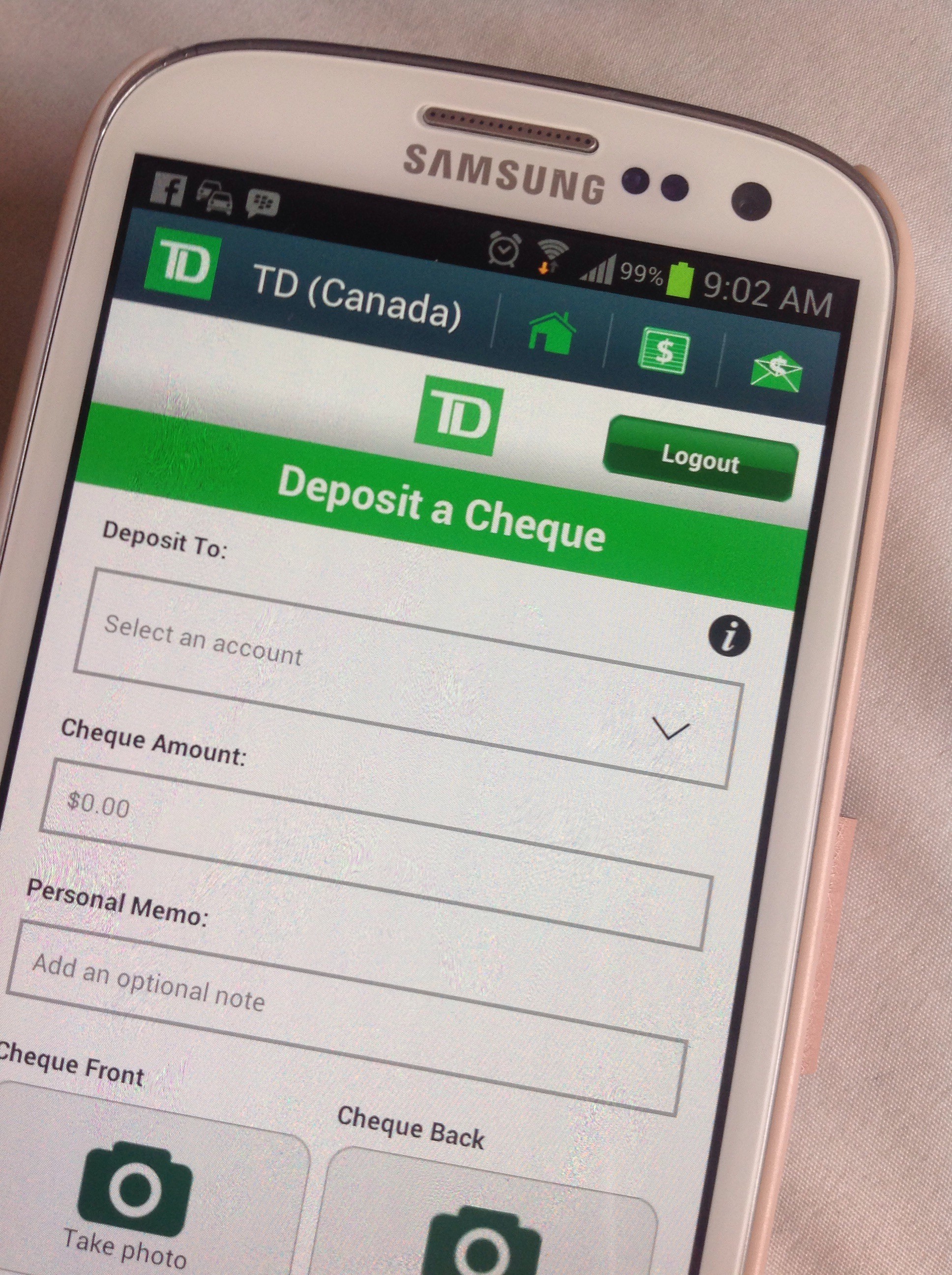 I love it that the banks that I am using now have mobile deposits available for their customers. To be able to make mobile deposits, what you need to do is, first, download and install the mobile app of the bank on your smartphone. Once you have the app installed, login with your account, take a picture of the front and back of the cheque that you received and upload these onto the app. It is a pretty straightforward process; just make sure you follow the instructions indicated in your bank’s app. Also, remember to keep the physical cheque in your possession (don’t shred it yet!) until you have confirmed that the bank has cleared the cheque to your account.
As of this writing, the Canadian banks that have this feature are the following:
- CIBC
- PC Financial
- Royal Bank of Canada
- Tangerine
- TD Canada Trust
So, what do you think of this feature?
 Tech-Life in Pink