Tech
Unboxing the Nokia N8
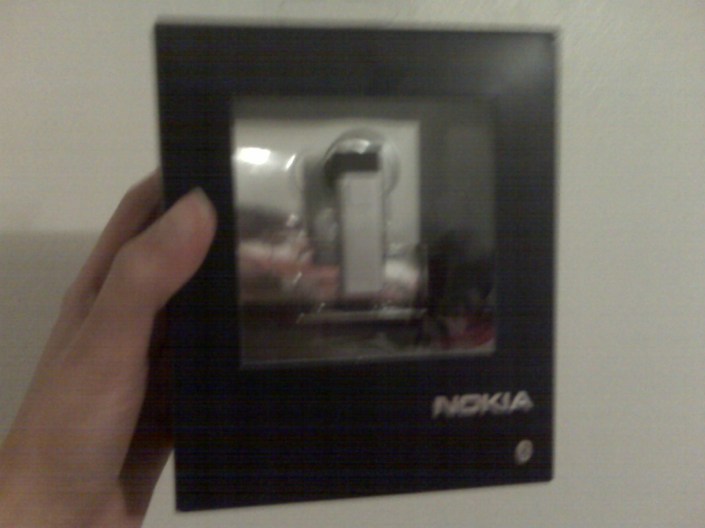
WOM World/Nokia contacted me again if I wanted to trial a Nokia N8. I gladly accepted and I got the Nokia N8 by courier two days ago. Here are photos of the unboxing. Review on the product in another post coming soon.
Nokia N8 Launch Party (Canada)
Two nights ago on November 10th, 2010, I attended the Nokia N8 Launch Party in Toronto, Canada where I was invited by Chris from WOM World/Nokia. It was held at Bang & Olufsen at 175 Avenue Road. It was a cool place and a cool party. Drinks and hors d’oeuvres were served, hip music was played. On one side was a section where anyone can play games using the Nokia N8s which were plugged into two big screen TVs.
There was a section where someone was showing the game/apps features of the phone, and another section where someone was explaining the technical specs of the N8. I got to try out playing two games on the N8 — Avatar and Angry Birds. The screen was nice and very responsive. I noticed though that when you have 2-3 apps open while playing, it slows the game down. So if you ever want to play games on it, better to close all the other apps that you have running.
-More after the jump-

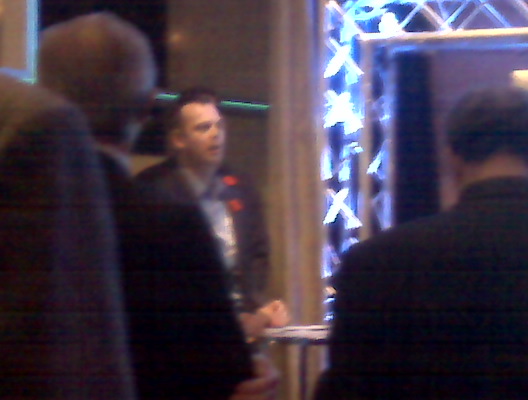
When I headed over to the technical section, the guy who was there was still talking to someone. So I stood nearby kind of waiting. And then Glenn, the nationwide sales manager of Nokia Canada who was standing nearby too, asked if he could answer any questions I had although he probably wouldn’t be more specific as the N8 technical guy there. He was really nice as he answered my inquiries about the phone. I mentioned that it was really light and I was curious what kind of material was used to make it; he said it was anodized aluminum. I probably wouldn’t have needed to ask that question if I did some homework on the product before going to the launch party. We talked about how good its touchscreen was. I mentioned that based on my experience with other Nokia models with touchscreens, this one was really good while the older ones were not so good. Also the N8 has 16GB internal memory but is expandable up to 32GB with a MicroSD card.
Welcoming remarks were made after an hour I was there by another important person from Nokia Canada (sorry can’t remember who it was) and also the host that was the owner of Bang & Olufsen. It was mentioned that the N8 is sold only on Rogers Wireless for $79.99 on select 3-year plans. Also on a side note, interesting that the host mentioned that Bang & Olufsen and Nokia had something in common, that is they are both Scandinavian. And then they showed a video on the big screen which was shot with the Nokia N8. It was sharp and had good picture quality.
After the welcome remarks, I hung out for a bit more, had some more hors d’oeuvres and played again with the N8 in the games section, then I had to go home because I had work early the next day. Anyway, eventhough I’ve had a short experience with the N8, I was already really impressed by it. I can’t wait to test it out for a couple of weeks (coming soon!).
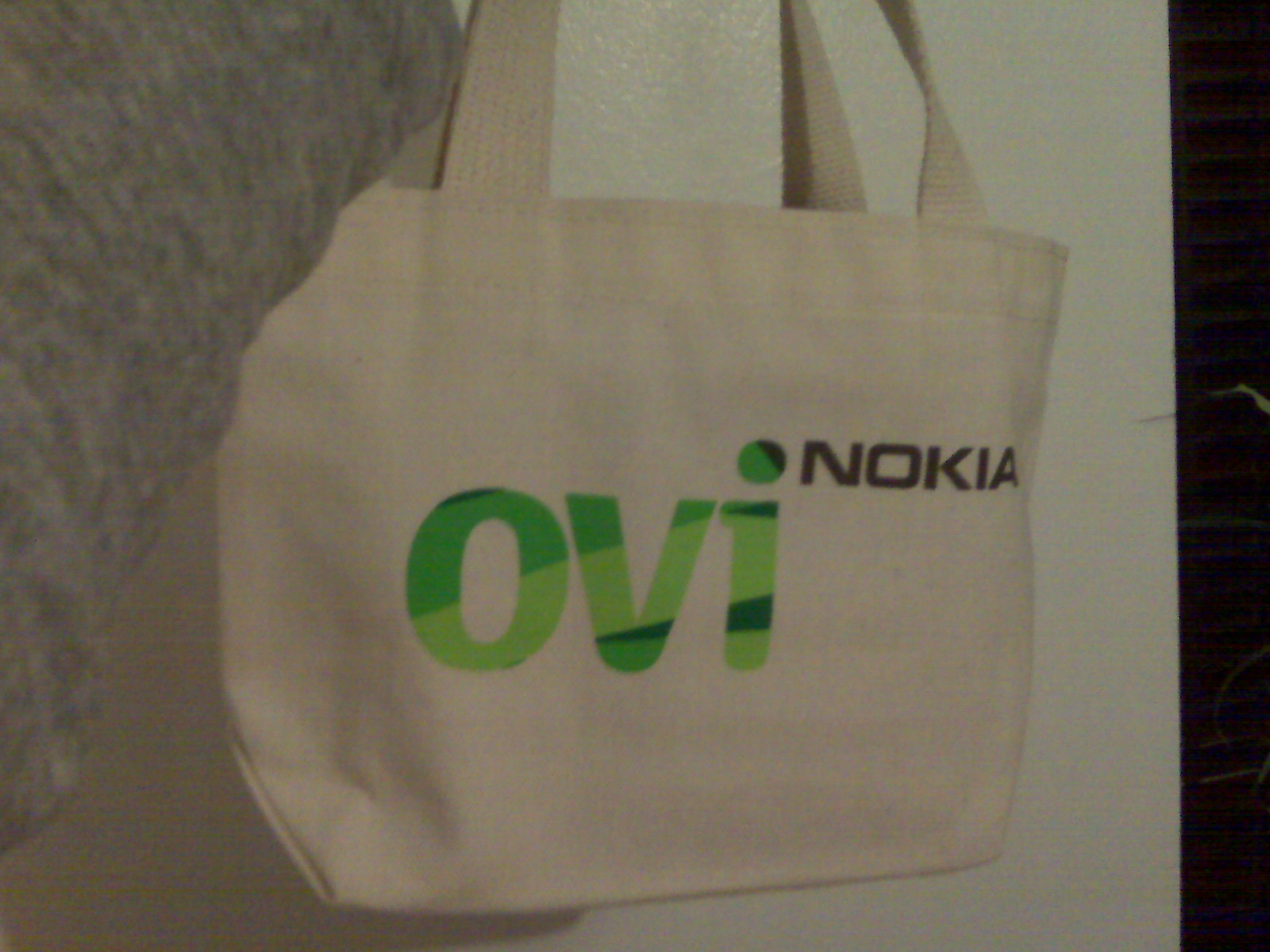
Oh yeah, I got a free Nokia Bluetooth Headset BH-804 in a small giveaway Ovi bag. That was pretty cool.
P.S. The photos I took are kinda crappy because I didn’t have my camera with me so I used my BlackBerry Curve.
I Love the Nokia Booklet 3G
This has been a long overdue post. Anyway, back in June 2010, I looked into the WOMWorld/Nokia website and sent a request to trial a Nokia Booklet 3G. I was excited on seeing and getting my hands on this product since I am a Nokia fan. I’ve owned several Nokia phones before and have been impressed by them, so I was curious to find out if this product (which is something new for them as they only normally make phones) would be a good one as well.
The Nokia Booklet 3G is about the size of a netbook, however Nokia doesn’t refer to it as such. They refer to it as a mini laptop.
When I first unboxed the product, I was impressed with how it looked. I fell in love with it at first sight. It had a sleek shiny black top exterior. Then when I opened it, I liked the 10.1-inch HD glass display, and the matte aluminum chassis which measured at only 2cm thin. It was also very lightweight as expected (2.7lbs).
-More after the jump-
This product has Windows 7 running on an Intel Atom 1.6GHz processor with 1GB DDR2 memory and a 120GB hard drive. The expected battery life is about 12 hours. When I tested it, I think I had it running for about 10 hours and I only had a couple browser windows open. I would say that’s really pretty good. I could have tried playing a movie on it to see if it would make a big difference on the battery life, but I was too busy to test it out like that.
One thing I liked about this mini laptop was that it was capable of running on a 3G cellular network just by inserting a SIM card in it. I have a Rogers SIM with a data plan so I tested it out with this. It worked really well right away, no need to configure anything! (See screenshot below). It is capable of download speeds up to 10.2 Mbps.
-More after the jump-

It has three USB ports, an HDMI output port, and comes with the usual Bluetooth and WiFi connectivity, which is good. It also has an integrated A-GPS which I didn’t really get to try out. The A-GPS works with the Nokia Ovi Maps. Amazingly, the Booklet 3G ran very quietly, especially since it had no fan.
The Nokia Booklet 3G isn’t available in Canada although it’s been released in the US since last year. Retailers sell it for about $600, which I think is a little bit pricey. If it was in the $400 range, it’ll probably be worth buying it.
The overall rating I would give this product is 4.5 stars out of 5.
Adding a Switch Port Interface to a VLAN
In an internet data centre, clients can set up a colocation where they can run their servers for access with the internet. In my job, what I would do is configure the Cisco Catalyst switch 3750 for new colocation clients. It is pretty simple. I check for a free port, assign this to the client, then assign them to a VLAN.
Here’s a configuration sample of how it would go:
————————-
colo.switch>en
colo.switch>password:
colo.switch#show run int fa 1/0/11
Building configuration…
Current configuration : 36 bytes
!
interface FastEthernet1/0/11
end
colo.switch#conf t
Enter configuration commands, one per line. End with CNTL/Z.
colo.switch(config)#int fa 1/0/11
colo.switch(config-if)#desc ClientNum – ClientName – VLAN 311
colo.switch(config-if)#switchport access vlan 311
% Access VLAN does not exist. Creating vlan 311
colo.switch(config-if)#dup full
colo.switch(config-if)#speed 100
colo.switch(config-if)#storm-control broadcast level pps 10k 9k
colo.switch(config-if)#storm-control multicast level pps 10k 9k
colo.switch(config-if)#storm-control unicast level pps 10k 9k
colo.switch(config-if)#switchport mode access
colo.switch(config-if)#no shut
colo.switch(config-if)#^Z
colo.switch#show run int fa 1/0/11
Building configuration…
Current configuration : 298 bytes
!
interface FastEthernet1/0/11
description ClientNum – ClientName – VLAN 311
switchport access vlan 311
switchport mode access
speed 100
duplex full
storm-control broadcast level pps 10k 9k
storm-control multicast level pps 10k 9k
storm-control unicast level pps 10k 9k
end
colo.switch#copy run start
Destination filename [startup-config]?
Building configuration…
[OK]
colo.switch#
————————-
Always keep in mind when configuring a switch port that there are no existing configurations there that you would be overwriting by mistake. This is why the show run int fa 1/0/xx is important as it would display the existing running-configuration.
When you’re done with your configurations and have verified them correct, be sure to save them to the memory by using the command copy run start.
This post just shows a sample of configuring a switch port to a VLAN. Of course, this is not all that needs to be done for the client as they wouldn’t have access yet to and from the internet. The next step would be assigning them IP addresses and configuring the routes. More of that in another post.
iPhone 4 / iOS4 New Features
This post is quite a bit late already as the iPhone 4 has been released a few months ago. However, I know the following are really useful bits of information, so read on! (Reference: iPhone Support documentation)
Antenna (low signal / dropped calls)
The iPhone 4 has a new Antenna system. If you are having reception issues, Apple recommends getting a bumper case that will help safeguard the antenna from touch. To avoid poor reception issues if you don’t want to use a bumper case, make sure you hold the device by not touching the area where the black strips are at the bottom of the unit. It is also recommended to update it to iOS 4.01 or above which corrects an abnormality in the signal strength meter.
Cellular Data
iOS4 includes a new feature called Cellular Data – it allows you to turn off DATA CONNECTIVITY while still being able make and receive voice calls and using SMS. This is good if you are one of those users who wish to turn off data to conserve battery life or to safeguard against accidental roaming charges. When this option is OFF, you will not be able to use MMS, Tethering, use Visual Voicemail (the phone will still allow you to call into your voicemail box from the voicemail screen), and any application that requires data or location services will not function.
FaceTime
FaceTime is Apple’s new video calling feature, which is only available if you and the person you’re calling has an iPhone 4 as it requires the front facing camera. At the moment it only works through WiFi – 3G service is expected to be coming later this year (with Rogers Wireless users). If you are experiencing issues placing a call after porting your number, follow the steps HERE.
Should you have issues placing FaceTime calls and are behind a firewall, make sure you enable port forwarding for the following ports 53, 80, 443, 4080, 5223, and 16393-16472 (UDP). Refer to your router manufacturer for assistance or to your local IT Group.
Picture Restrictions
You can only copy five images at a time into an email. You can also now share up to nine images via MMS and five via email.
Voicemail Info (VMRN – Voicemail Retrieval Number)
| Check Current VMRN | *#5005*86# call | |
| Set Visual VMRN | *5005*86*+16478029327# call | (This is for Rogers iPhone users only. You may need to use a different VMRN. Contact your service provider.) |
Text Message
| Set Service Centre # | *5005*7672*+17057969300# call | (This is for Rogers iPhone users only. Contact your service provider for applicable SMSC#.) |
VPN Access (requires the Public IP Service)
| APN: vpn.com | Username: wapuser1 | Password: wap | (This applies to Rogers iPhone users only.) |
Other Useful Links and Support Tools
| iTunes Account and Purchasing Issues | 1-800-MYAPPLE |
| Apple Support and Tutorials | http://www.apple.com/support/iphone/ |
| Apple Expert (1×1 Phone Call) | http://www.apple.com/support/expert/ |
| MobileME Support | http://www.apple.com/support/mobileme/ |
| iPhone Troubleshooting Assistant | http://www.apple.com/support/iphone/troubleshooting/ |
| General iPhone Troubleshooting | http://support.apple.com/kb/TS2802 |
| Multitasking (iOS4) | http://support.apple.com/kb/HT4211 |
| MMS Issues | http://support.apple.com/kb/TS2755 |
| iOS4 User Guide | http://manuals.info.apple.com/en_US/iPhone_iOS4_User_Guide.pdf |
| Purchasing and Creating Ring Tones | http://support.apple.com/kb/HT1398 |
| Warranty Validation | https://selfsolve.apple.com/agreementWarrantyDynamic.do?newid=y |
 Tech-Life in Pink


